
Exam C_S43_2601 Topic 1 Question 5 Discussion
Actual exam question for SAP's C_S43_2601 exam
Question #: 5
Topic #: 1
Question #: 5
Topic #: 1
Task: 5
Configure and create a Maintenance Notification
The project team evaluates during the implementation project the Maintenance Notifications in SAP S
/4HANA Asset Management. The following features need to be checked:
* Configure and create a Maintenance Notification
* Assign catalog specific data to a Maintenance Notification
* Create a Maintenance Notification and save it. Use the following information:
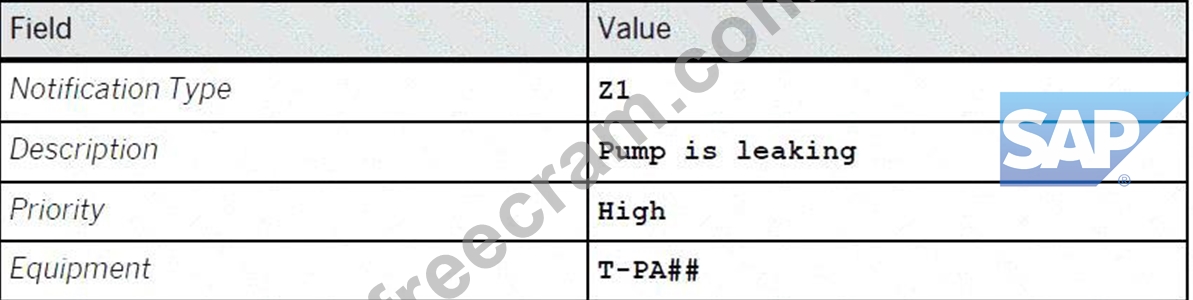
* Assign the following data to the just created notification:
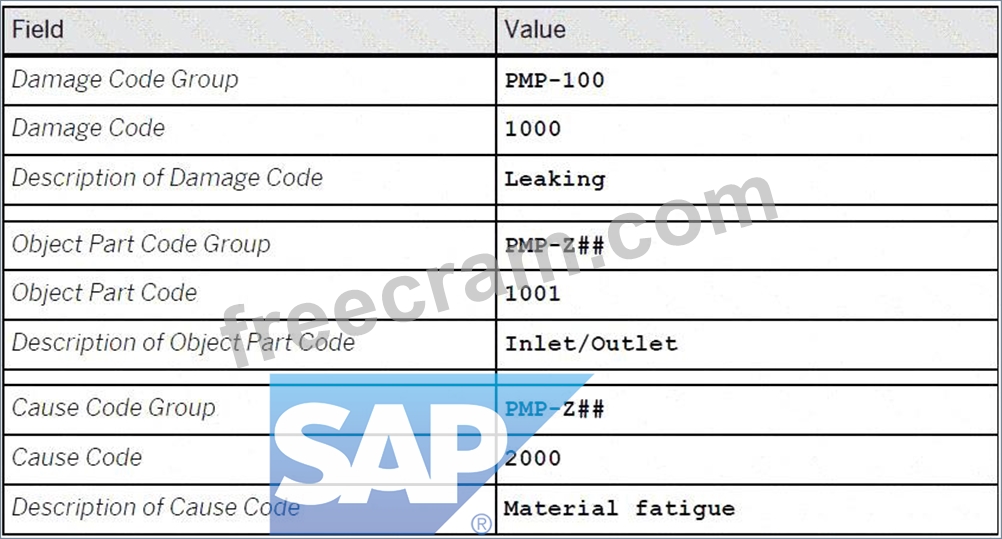
Configure and create a Maintenance Notification
The project team evaluates during the implementation project the Maintenance Notifications in SAP S
/4HANA Asset Management. The following features need to be checked:
* Configure and create a Maintenance Notification
* Assign catalog specific data to a Maintenance Notification
* Create a Maintenance Notification and save it. Use the following information:
* Assign the following data to the just created notification:
Suggested Answer:
See the Explanation for complete Solution of this Task.
Explanation:
Task 5 Overview
The project team is evaluating Maintenance Notifications in SAP S/4HANA Asset Management. This task involves creating a notification and assigning catalog-specific data to it.
Step 1: Create the Maintenance Notification
In this step, you will record a technical problem in the system.
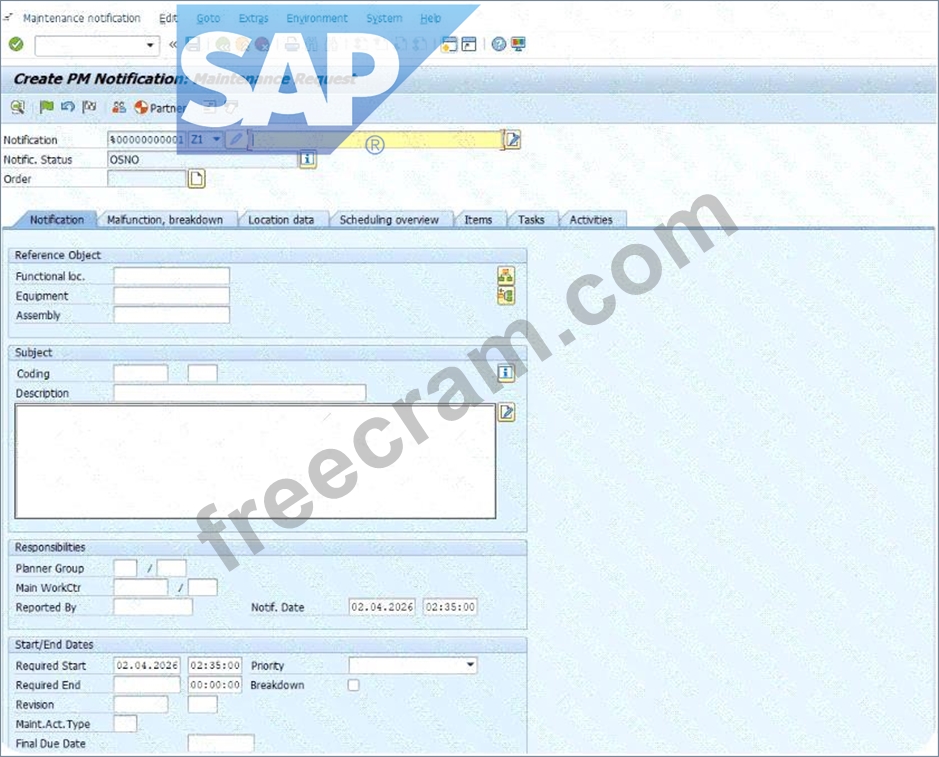
* Access the Transaction : Use transaction code IW21 (Create Maintenance Notification) in the SAP GUI or the corresponding Fiori app.
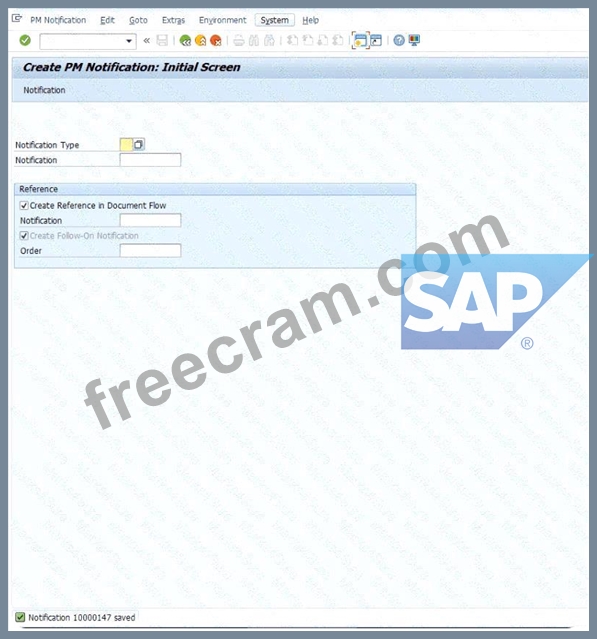
* Initial Screen :
* Notification Type : Enter Z1 .
* Press Enter .
* Enter General Data :
* Description : Enter Pump is leaking .
* Priority : Select High .
* Equipment : Enter T-PA48 .
* Save : Click the Save (floppy disk) icon to generate a notification number.
Explanation : Creating a notification is the first step in the maintenance process. It documents the "what" (leaking pump), the "how critical" (high priority), and the "where" (Equipment T-PA48).
Step 2: Assign Catalog Specific Data
Now you must assign technical codes to describe the damage precisely for future reporting and analysis.
* Access the Transaction : Use transaction code IW22 (Change Maintenance Notification) to open your recently created notification.
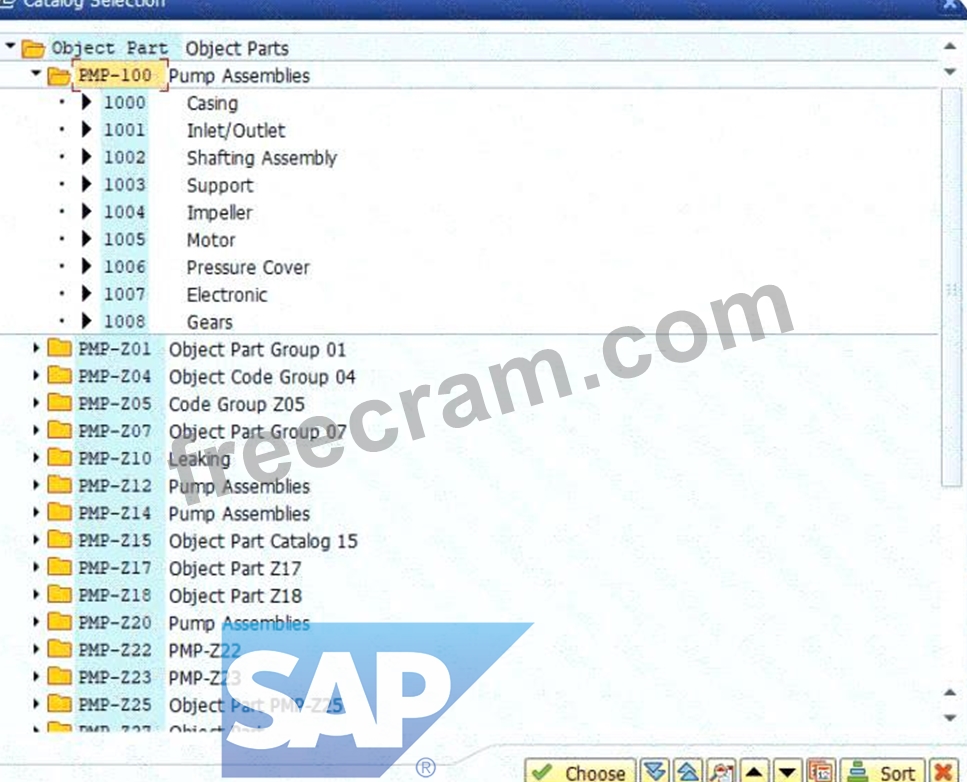
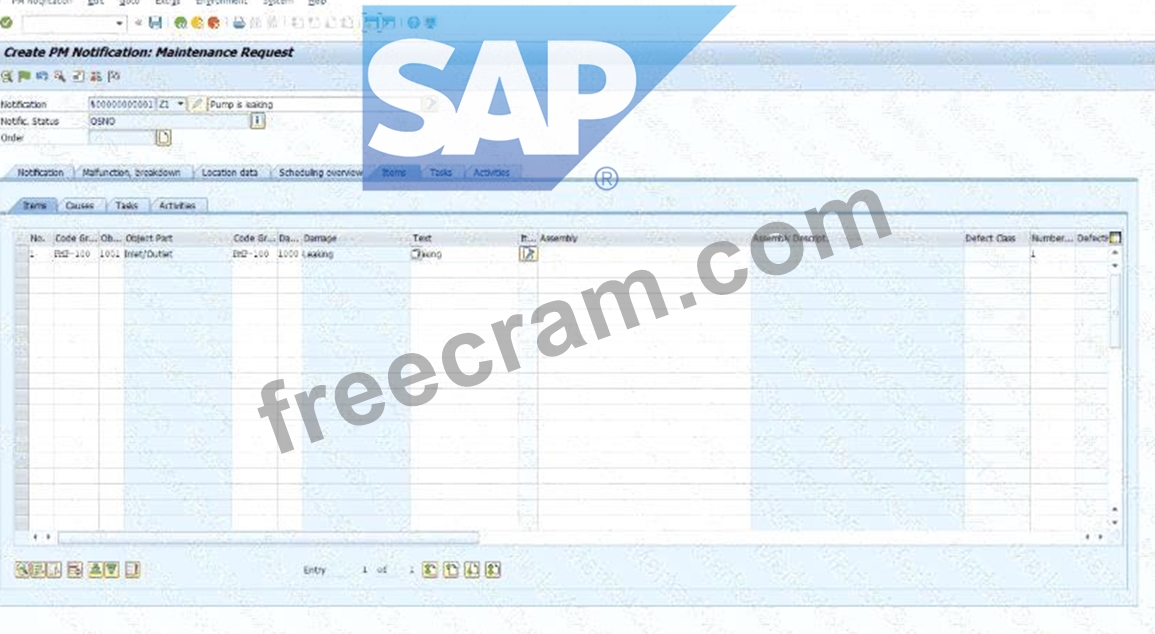
* Navigate to Item Data : Go to the Items tab or the relevant section for damage and causes.
* Enter Damage Details :
* Damage Code Group : PMP-100 .
* Damage Code : 1000 .
* Description : Leaking .
* Enter Object Part Details :
* Object Part Code Group : PMP-Z48 .
* Object Part Code : 1001 .
* Description : Inlet/Outlet .
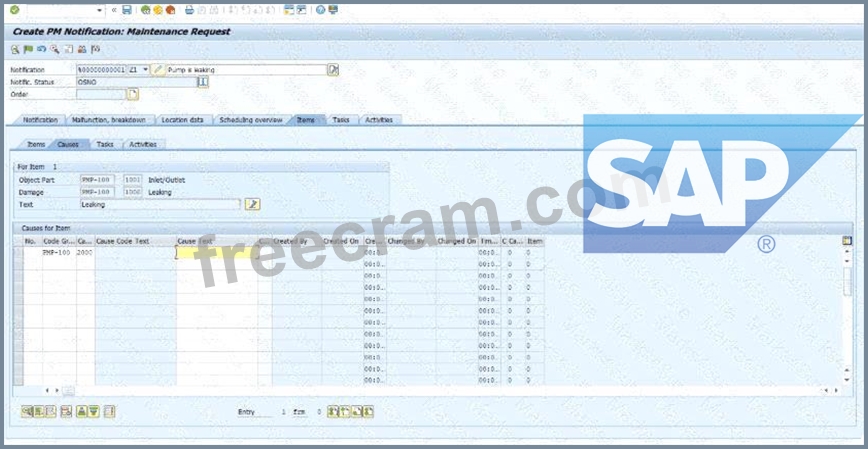
* Enter Cause Details :
* Cause Code Group : PMP-248 .
* Cause Code : 2000 .
* Description : Material fatigue .
* Save : Click the Save icon to finalize the notification.
Explanation : Assigning catalog data categorizes the issue using standardized codes. This allows the company to run "Bad Actor" reports later to see, for example, how many pumps are failing due to "Material fatigue" versus "Operator error".
Explanation:
Task 5 Overview
The project team is evaluating Maintenance Notifications in SAP S/4HANA Asset Management. This task involves creating a notification and assigning catalog-specific data to it.
Step 1: Create the Maintenance Notification
In this step, you will record a technical problem in the system.
* Access the Transaction : Use transaction code IW21 (Create Maintenance Notification) in the SAP GUI or the corresponding Fiori app.
* Initial Screen :
* Notification Type : Enter Z1 .
* Press Enter .
* Enter General Data :
* Description : Enter Pump is leaking .
* Priority : Select High .
* Equipment : Enter T-PA48 .
* Save : Click the Save (floppy disk) icon to generate a notification number.
Explanation : Creating a notification is the first step in the maintenance process. It documents the "what" (leaking pump), the "how critical" (high priority), and the "where" (Equipment T-PA48).
Step 2: Assign Catalog Specific Data
Now you must assign technical codes to describe the damage precisely for future reporting and analysis.
* Access the Transaction : Use transaction code IW22 (Change Maintenance Notification) to open your recently created notification.
* Navigate to Item Data : Go to the Items tab or the relevant section for damage and causes.
* Enter Damage Details :
* Damage Code Group : PMP-100 .
* Damage Code : 1000 .
* Description : Leaking .
* Enter Object Part Details :
* Object Part Code Group : PMP-Z48 .
* Object Part Code : 1001 .
* Description : Inlet/Outlet .
* Enter Cause Details :
* Cause Code Group : PMP-248 .
* Cause Code : 2000 .
* Description : Material fatigue .
* Save : Click the Save icon to finalize the notification.
Explanation : Assigning catalog data categorizes the issue using standardized codes. This allows the company to run "Bad Actor" reports later to see, for example, how many pumps are failing due to "Material fatigue" versus "Operator error".
by Morton at May 24, 2026, 11:31 PM
0
0
0
10
Comments
Upvoting a comment with a selected answer will also increase the vote count towards that answer by one. So if you see a comment that you already agree with, you can upvote it instead of posting a new comment.
Report Comment
Commenting
You can sign-up / login (it's free).