

Get 100% Authentic Microsoft MB-280 Dumps with Correct Answers
New Training Course MB-280 Tutorial Preparation Guide
Microsoft MB-280 Exam Syllabus Topics:
| Topic | Details |
|---|---|
| Topic 1 |
|
| Topic 2 |
|
| Topic 3 |
|
NEW QUESTION # 40
The assistant to the sales leader has some questions on how delegation works when using the Dynamics 365 App for Outlook. They want to know how columns are populated when an email is tracked.
You need to explain the behavior of the tracked email messages, in particular, what is set as the owner of the tracked email from a delegated mailbox.
What should you convey?
- A. The delegate user.
- B. The owner of the linked contact that sent the email.
- C. System (as it is promoted by server-side synchronization).
- D. The primary mailbox owner.
Answer: D
Explanation:
* When an email is tracked in Dynamics 365 from a delegated mailbox, the primary mailbox owner is set as the owner of the tracked email. This means that if an assistant sends or tracks an email on behalf of another user, the email's ownership will reflect the primary mailbox owner rather than the delegate.
* This behavior ensures that activities are correctly associated with the user who owns the mailbox, aligning with the ownership structure in Dynamics 365.
NEW QUESTION # 41
Drag and Drop Question
You work for a solar panel company that specializes in office buildings.
The sales team needs to set up a sequence for contacts to automatically receive a welcome email with the company's information and an introduction call one (1) day later.
You need to create the email template that can be used in this sequence.
Which four actions should you perform in sequence? To answer, move the four appropriate actions from the list of actions to the answer area. Arrange the four actions in the correct order.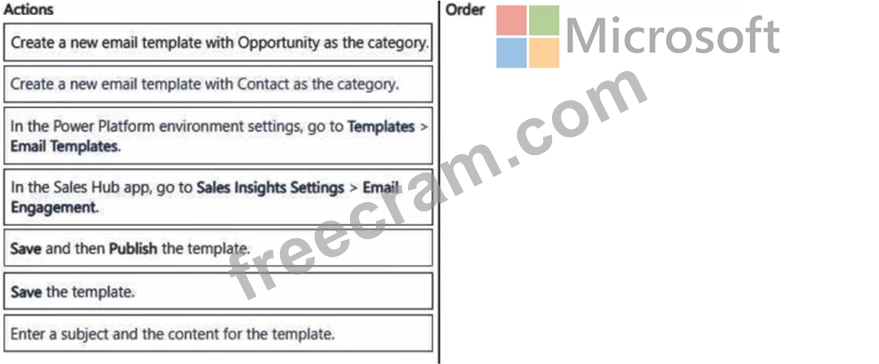
Answer:
Explanation: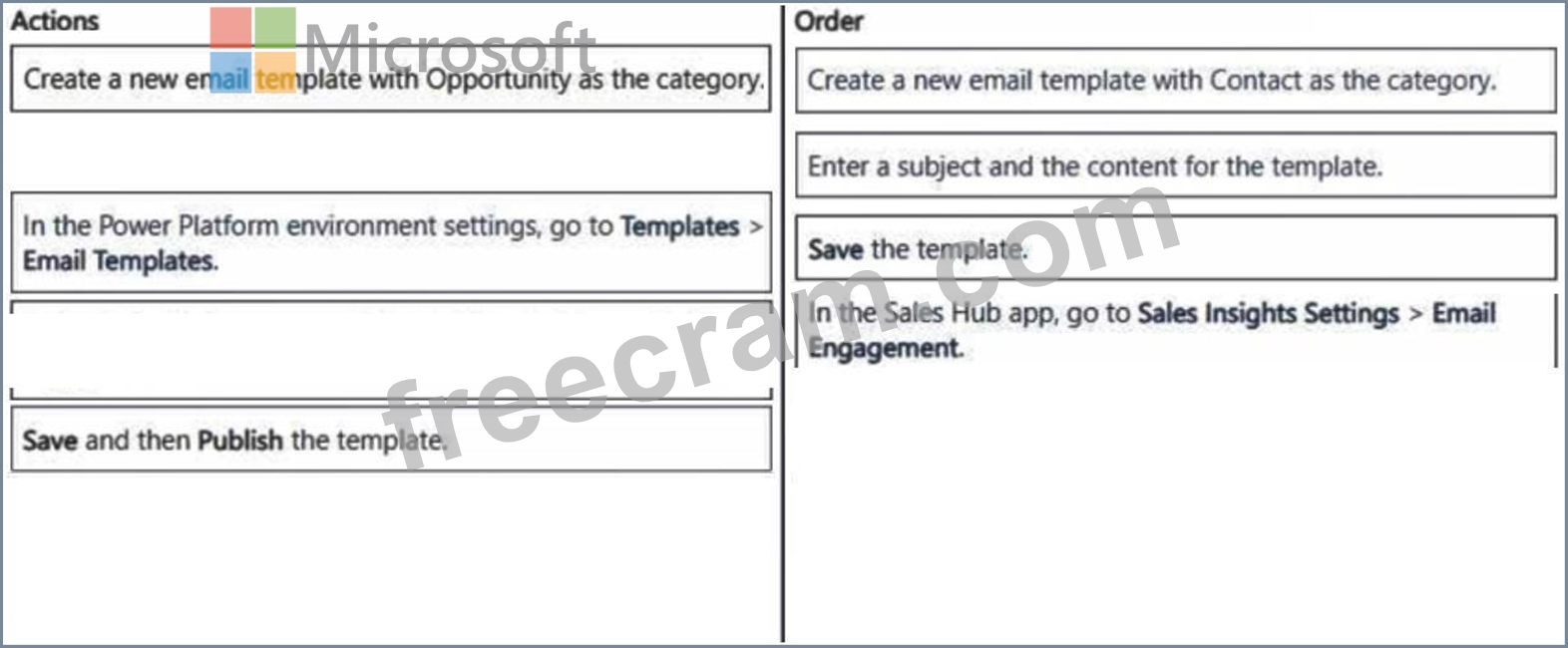
Explanation:
Reference:
https://learn.microsoft.com/en-us/dynamics365/customer-insights/journeys/email-design
https://learn.microsoft.com/en-us/dynamics365/sales/create-and-activate-a-sequence
NEW QUESTION # 42
Drag and Drop Question
Your sales team has now managed to get all the email communication in place and want to take it a step further by implementing SMS channel.
You need to configure an SMS provider.
Which four actions should you perform in sequence? To answer, move the four appropriate actions from the list of actions to the answer area. Arrange the four actions in the correct order.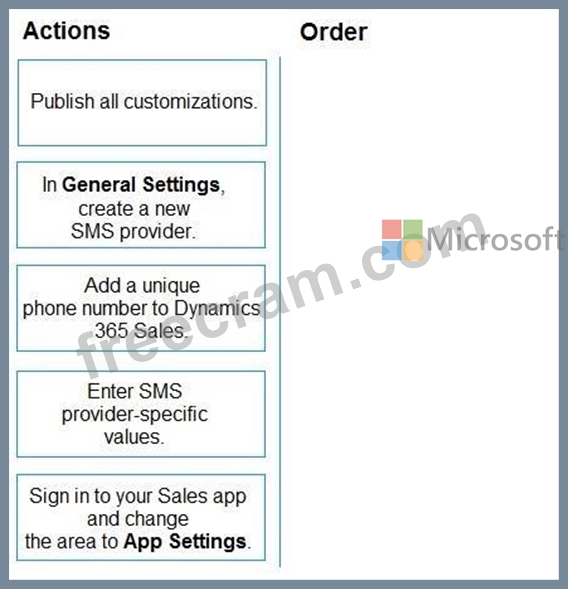
Answer:
Explanation: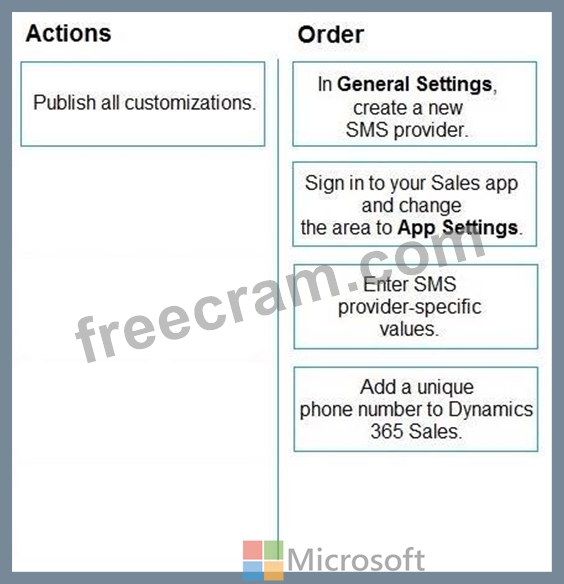
Explanation:
Step 1: In General Settings, create a new SMS provider
First: Sign up and create an account with the SMS provider of your choice.
Step 2: Sign in to your sales app and change the area to App Settings.
Dynamics 365 Sales, Configure SMS provider
Set up the SMS provider in Dynamics 365 Sales
To set up the SMS provider number in Dynamics 365 Sales:
1. Sign in to your sales app, and in the lower-left corner of the page, go to Change area > App Settings > SMS providers.
[Step 2]
Step 3: Enter SMS provider-specific values
2. From the tool bar, select New.
3. Select the provider. Accept the Microsoft privacy statement and the provider's consent to handle opt-out commands properly. Then select Next.
4. On the Set up provider page, enter the values depending on the provider you've selected.
Then select Next. [Step 3]
Step 4: Add a unique phone number to Dynamics 365 Sales
5. On the Add phone numbers page, select New phone number.
A pane opens on the right to enter the phone number details.
6. On the Add phone number pane, enter the following details:
Phone number: Specify the SMS number that you purchased from the provider in the
<country_code><phone_number> format; for example, +12345678910. Make sure not to enter blank spaces or special characters. [Step 4] Note:
The phone number must be unique for Dynamics 365 Sales. Don't include numbers that were used to configure message features in other Dynamics 365 apps.
[Details omitted]
7. Select Add.
The phone number is added to the list of phone numbers. You can add multiple numbers for different teams and users according to your organizational requirements.
8. Select Next.
9. On the Review and finish page, review the information that you've provided for the channel and then select Done.
NEW QUESTION # 43
You need to enable the Dynamics 365 App for Outlook for the sales team.
You need to perform the prerequisite actions before you can add the app for all users.
Which two actions should you perform? Each correct answer presents part of the solution.
(Choose two.)
NOTE: Each correct selection is worth one point.
- A. Enable mailboxes.
- B. Enable sending on behalf of other users setting.
- C. Add the Dynamics 365 App to Outlook desktop app.
- D. Add the Dynamics 365 App for Outlook security role.
Answer: A,D
Explanation:
Before enabling the Dynamics 365 App for Outlook for the sales team, you need to perform the following prerequisite actions:
Enable mailboxes: This step is essential as it ensures that users' mailboxes are configured correctly to work with Dynamics 365. Users must have their mailboxes enabled in the system for the integration to function properly.
Add the Dynamics 365 App for Outlook security role: Assigning this security role to users is necessary to provide them with the appropriate permissions to access and use the Dynamics 365 App for Outlook.
NEW QUESTION # 44
You manage a Dynamics 365 Sales environment where users can only view and edit their own records.
User2 is assisting with User1's opportunities while User1 is on vacation. User1 remains the owner of User1's opportunities.
User2 has reported that they CANNOT update User1's opportunities.
You need to diagnose the issue.
What should you do?
- A. Ensure the record is assigned to User2.
- B. Ensure User2 is added to an Access team.
- C. Ensure User2 is added to the Sales team.
- D. Ensure User2 is added to the Owner team.
Answer: B
Explanation:
Dynamics 365 Sales uses the Opportunity Sales Access Team template to provide access to the opportunity record to all the users connected under the Sales team connection role category. A salesperson who might not have access to a given opportunity record by their assigned security role privileges can still get access when added as a sales team member from this subgrid. This allows the sales team member users to access and work with the opportunity record in Dynamics 365 on a per-record basis. Similarly, when an existing sales team member is deleted from the subgrid, the access to the opportunity record granted via the access team template is also removed.
Note: Use access teams and owner teams to collaborate and share information When to use access teams The teams are dynamically formed and dissolved. This typically happens if the clear criteria for defining the teams, such as established territory, product, or volume aren't provided.
The team members require different access rights on the records. You can share a record with several access teams, each team providing different access rights on the record. For example, one team is granted the Read access right on the account and another team, the Read, Write and Share access rights on the same account.
A unique set of users requires access to a single record without having an ownership of the record.
Reference:
https://learn.microsoft.com/en-us/dynamics365/sales/stakeholders-sales-team-members
https://learn.microsoft.com/en-us/dynamics365/customerengagement/on-premises/developer/use-access-teams-owner-teams-collaborate-share-information
NEW QUESTION # 45
You are the Dynamics 365 administrator for a group of financial advisors.
Advisors must use one business process flow to guide them through the standard lead to invoice process.
Each table has the following number of stages and steps: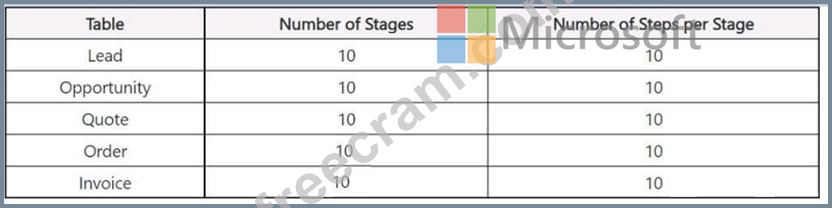
You need to modify the business process flow to make it valid.
What should you reduce?
- A. number of steps per stages
- B. number of tables
- C. total number of steps
- D. total number of stages
Answer: C
Explanation:
Summary of Data
Each table (Lead, Opportunity, Quote, Order, Invoice) has:
Number of Stages: 10
Number of Steps per Stage: 10
Total Steps Calculation
For the entire process flow involving all tables:
Total Stages: 10 (Lead) + 10 (Opportunity) + 10 (Quote) + 10 (Order) + 10 (Invoice) = 50 stages Total Steps: 100 (Lead) + 100 (Opportunity) + 100 (Quote) + 100 (Order) + 100 (Invoice) = 500 steps Requirement for Valid Business Process Flow Dynamics 365 imposes limitations on business process flows, typically regarding the total number of steps and stages involved. The total number of steps can be a limiting factor for the flow to be valid.
To make the business process flow valid, you should reduce total number of steps.
Reducing the total number of steps (e.g., by decreasing the number of steps per stage or the total number of stages) will help you stay within the limits imposed by Dynamics 365 for business process flows.
NEW QUESTION # 46
A large construction company uses Dynamics 365 Sales to manage their sales pipeline.
All future jobs are logged in the system as opportunities. Depending on the type o( work, some opportunities close faster, and others take longer due to dependency on the third-party vendors.
The sales team does NOT currently use the "On hold* option, as it does NOT provide enough details.
When working with open opportunities, the sales manager wants to know whether opportunities are pending permits or require asbestos removal.
You need to ensure that a salesperson can only select the "Pending Permits" or "Asbestos Removal" option when working with their opportunities to indicate the deal is taking longer.
What should you do?
- A. Edit the statecode column: rename the "On hold" status to "Asbestos Removal" and add a new 'Pending Permits" status value.
- B. Edit the statuscode column: add "Pending Permits" to the "Open" status reason values, and rename "On hold" to "Asbestos Removal."
- C. Edit the statuscodecolumn: add "Asbestos Removal" and 'Pending Permits" status values to the "Open" status reasons.
- D. Edit the statecode column: rename the "Open" status value to "Asbestos Removal" and add a new "Pending Permits" status value.
Answer: C
Explanation:
Understanding the Statuscode and Statecode Columns:
In Dynamics 365 Sales, opportunities have two primary columns related to their status: statecode and statuscode.
The statecode defines the primary state of an opportunity (e.g., Open, Won, Lost).
The statuscode provides more granular reasons associated with each primary state. For example, within the "Open" state, you can have various reasons such as "In Progress," "On Hold," etc.
Reference:
Modifying Status Reasons for Open Opportunities:
The construction company wants to indicate when opportunities are delayed due to specific external factors. To accommodate this, they need specific status reasons like "Pending Permits" and "Asbestos Removal." By adding these as status reasons under the "Open" state, you enable sales team members to select these options directly from their current status options.
Steps to Add New Status Reasons to Open Opportunities:
Navigate to Solution: Go to the Dynamics 365 Sales app, then to Settings > Customizations > Customize the System.
Locate the Opportunity Entity: In the default solution, find and expand the "Entities" list, then select "Opportunity." Edit Statuscode Values: Within the "Opportunity" entity, select "Fields," then find and edit the statuscode field. Here, you can add new options under the "Open" status. Add "Pending Permits" and "Asbestos Removal." Publish the Changes: After adding and saving the new status reasons, publish the changes so that they are available to users.
Verifying Custom Status Reason Visibility:
Ensure the new options are available on the Opportunity form for selection.
Test by opening an Opportunity and confirming that the "Pending Permits" and "Asbestos Removal" options are available under the Open status reasons.
By following these steps, the sales team can now use specific status reasons to indicate why certain opportunities are delayed, providing clearer visibility into the sales pipeline's status.
NEW QUESTION # 47
Note: This question is part of a series of questions that present the same scenario. Each question in the series contains a unique solution that might meet the stated goals. Some question sets might have more than one correct solution, while others might not have a correct solution.
After you answer a question in this section, you will NOT be able to return to it. As a result, these questions will not appear in the review screen.
A company's IT department has a .CSV file stored on one of their Shared Documents folders within their Microsoft SharePoint sites. The data from the .CSV file is ingested into Dynamics 365 Customer Insights - Data.
The file contains a row header and columns of different types, such as quantities and prices. The file also contains some rows with a high proportion of nulls.
You need to clean and transform the data in Customer Insights - Data to be ready for unification.
Solution: Transform the first row to be used as headers, remove rows that contain null values, and name the query. Select Next and your data is now ready for unification.
Does this meet the goal?
- A. No
- B. Yes
Answer: A
Explanation:
While the solution includes transforming the first row to be used as headers and naming the query, the step of removing rows that contain null values is problematic.
Removing all rows with null values can lead to significant data loss, particularly if those rows contain relevant information.
NEW QUESTION # 48
A company deploys Dynamics 365 Sales.
You are deploying Dynamics 365 App for Outlook to all users in the environment.
You complete the following steps of the deployment:
- Assign all users the required security privileges.
- Enable and test all mailboxes.
- Users report that the app is NOT visible within their Outlook client.
You need to make Dynamics 365 App for Outlook available to all users.
Which two actions should you perform? Each correct answer presents a complete solution.
(Choose two.)
- A. Assign the Dynamics 365 App for Outlook User security role to all users.
- B. Provide the app URL to the users.
- C. Add the app for all users.
- D. Instruct users to install the app.
- E. Share the app with all users.
Answer: C,D
Explanation:
Deploy and install Dynamics 365 App for Outlook
Step 1: Set the default synchronization method [Assume done]
Step 2: Test email configuration and enable mailboxes [Done]
Step 3: Provide security role access [Done]
The security role Dynamics 365 App for Outlook User is available from build 9.1.0.4206 or later. If a user doesn't have this security role or its underlying privileges, they'll receive the following error:
You haven't been authorized to use this app. Check with your system administrator to update your settings.
You must add users to this role so they can use Dynamics 365 App for Outlook. This will ensure that the users have the basic privileges needed to access App for Outlook.
Step 4: Install App for Outlook
Follow these steps to push Dynamics 365 App for Outlook to selected users, all users, or have users install it themselves as needed.
Step 4.1: Push the app to your users
1. To push the app to your users, from your app, go to Settings > Advanced Settings.
2. Go Settings > Dynamics 365 App for Outlook.
3. The Getting Started with Microsoft Dynamics 365 App for Outlook page lists all eligible users that can use App for Outlook. You have several different options on how you can deploy the app to your users.
4. Etc.
Or
Step 4.2: Have users install App for Outlook themselves
1. From your app, go to Settings > Advanced Settings.
2. Select the Settings button Settings button., again and then select Apps for Dynamics 365 apps.
3. In the Apps for Dynamics 365 apps screen, under Dynamics 365 App for Outlook, users select Add app to Outlook.
NEW QUESTION # 49
You are working in Dynamics 365 Sales. You turn on the visibility of the Dynamics 365 Sales records in the channel.
A user working with leads is unable to pin the view into Microsoft Teams.
You need to identify the issue.
What should you do?
- A. Enable the Turn on Enhanced Microsoft Teams Integration option.
- B. Enable the External links within Teams option.
- C. Add users to the Teams channel.
- D. Add users to the correct security role.
- E. Disable the Turn on the linking of Dynamics 365 records to Microsoft Teams channels option.
Answer: A
Explanation:
For users to pin views of Dynamics 365 Sales records in Microsoft Teams, Enhanced Microsoft Teams Integration must be enabled. This feature allows users to seamlessly work with Dynamics 365 records within Teams and ensures proper synchronization between the two platforms.
NEW QUESTION # 50
You have added the timeline control to the Pet main form, then saved and published your changes. You need to configure the timeline to display related Pet activities as required by Terra Flor a. Which two actions should you perform? Each correct answer presents a complete solution. Choose two, NOTE: Each correct selection is worth one point.
- A. In the Record types of the timeline settings, uncheck the Posts option.
- B. In the Activity area of the timeline settings, remove all activity types, except for Task. Email and Phone Call.
- C. In the Record types of the timeline settings, uncheck the Notes option.
- D. In the Notes area of the timeline settings, uncheck the Remove notes title when authoring option.
- E. In the Record types of the timeline settings, uncheck the Activities option.
Answer: A,B
Explanation:
The timeline control in Dynamics 365 allows users to view and interact with activities, notes, and posts associated with a record. To meet Terra Flora's requirements for displaying specific activities, you need to customize the timeline to show only certain activity types.
Removing All Other Activity Types Except Task, Email, and Phone Call (Option B):
According to Terra Flora's requirements, only Tasks, Emails, and Phone Calls should appear in the timeline for Pet records. Therefore, removing all other activity types ensures that only the relevant activities are shown. This customization is achieved in the timeline settings by unchecking unnecessary activity types.
Unchecking the Posts Option (Option C):
Since Terra Flora specified that posts should not appear on the timeline, you should uncheck the Posts option under the Record types settings in the timeline configuration. This action removes posts from the view, aligning with Terra Flora's requirement to exclude posts from the Pet records timeline.
Other Options
Unchecking Notes (Option A) would prevent users from adding or viewing notes, which Terra Flora requires.
Unchecking the Activities Option (Option D) would disable all activities on the timeline, which does not meet Terra Flora's needs as they require Task, Email, and Phone Call activities.
Option E deals with the display format of notes but does not restrict their visibility, which does not align with the requirement to exclude posts specifically.
Reference from Microsoft Documentation:
For configuring and customizing the timeline control, refer to Customize a timeline control in Dynamics 365 documentation for detailed steps on modifying timeline settings and activity visibility.
NEW QUESTION # 51
Hotspot Question
A company is using Dynamics 365 Sales to track their sales pipeline.
Sales managers require their forecasting to include reasons why opportunities were lost, including losses to competitors.
You need to configure the sales process WITHOUT using custom code.
What should you do? To answer, select the appropriate options in the answer area.
NOTE: Each correct selection is worth one point.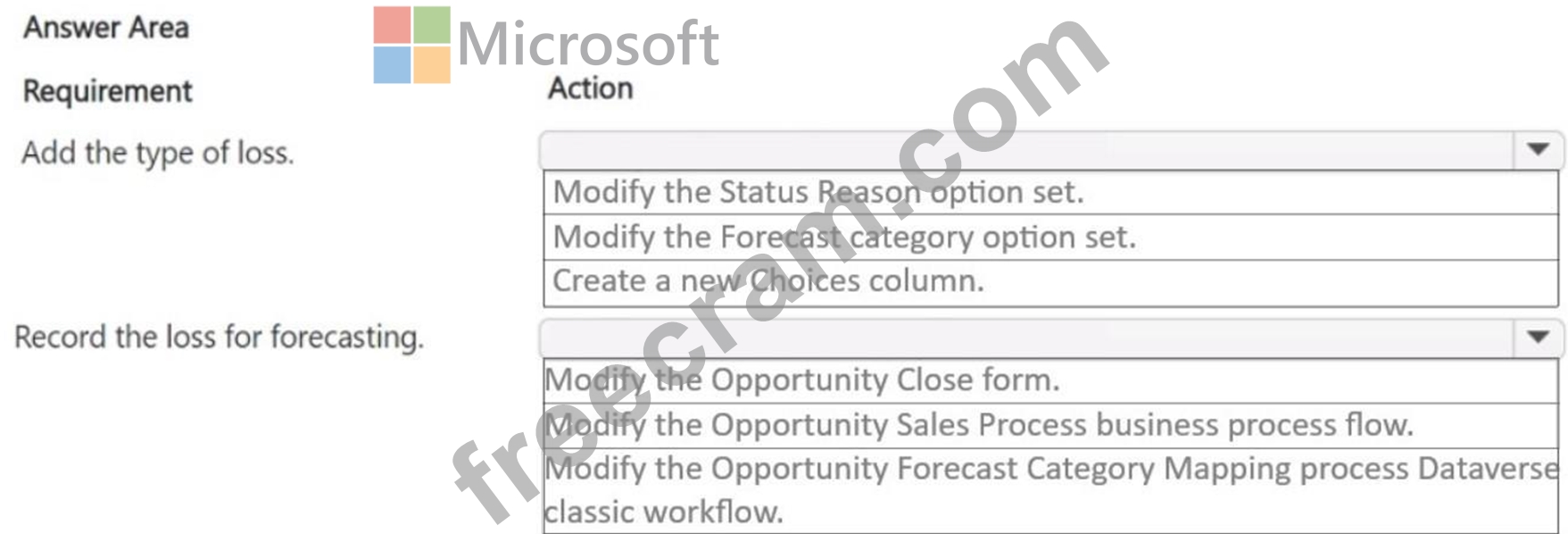
Answer:
Explanation: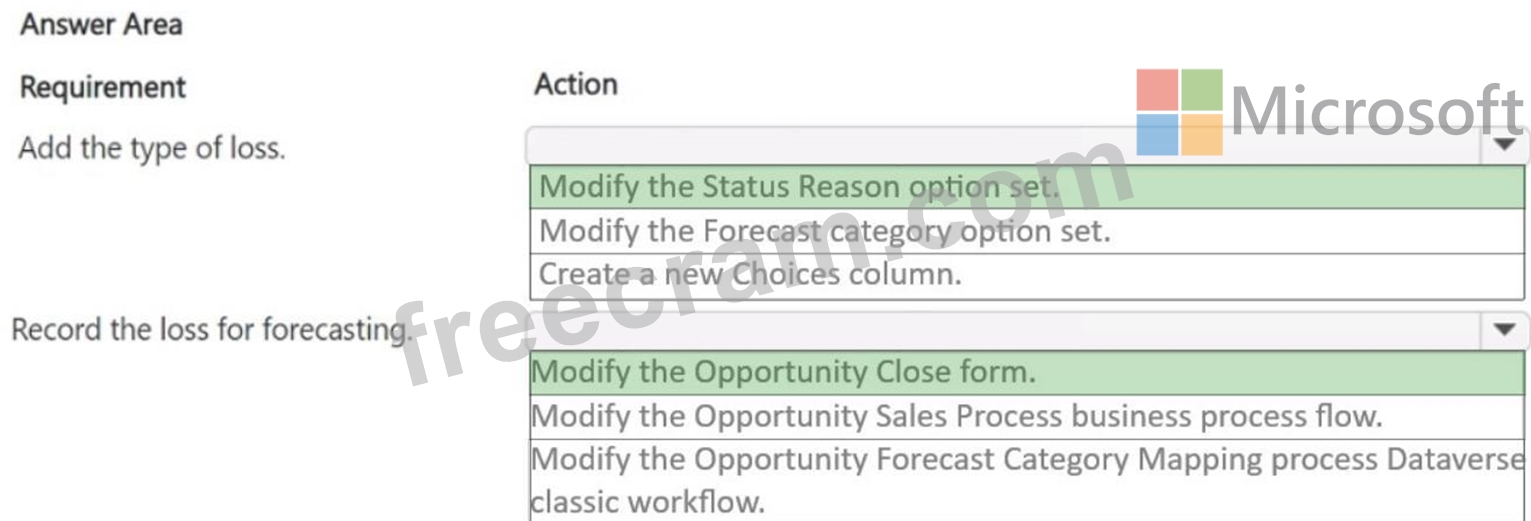
Explanation:
Add the type of loss: Modify the Status Reason option set - This action allows you to add specific reasons for losses, including losses to competitors, which can then be used in the sales pipeline.
Record the loss for forecasting: Modify the Opportunity Close form - This modification will enable the capturing of loss reasons directly when closing opportunities, which is essential for accurate forecasting.
NEW QUESTION # 52
A sales manager needs to set up goals in Dynamics 365 Sales for salespeople.
The measurement of goals must be based on the total deal amount upon closing an opportunity.
The fiscal year for the goals must be based on the calendar year.
You need to create the rollup query for the goal metrics.
Which options should you select? To answer, select the appropriate options in the answer area.
NOTE: Each correct selection is worth one point.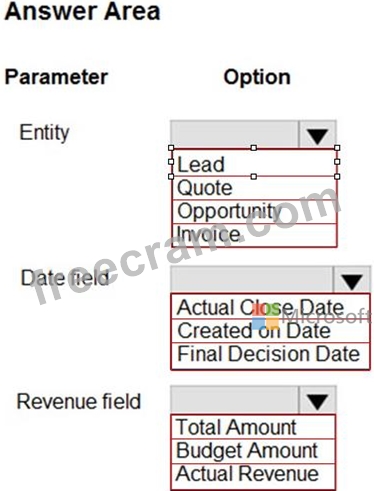
Answer:
Explanation: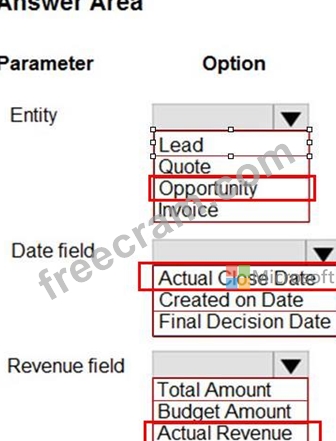
NEW QUESTION # 53
You are setting up a product catalog.
The product catalog must be set up with the following parameters:
● $100.00 off if a customer buys more than 10 cases
● $10.00 less if a customer buys two different products together instead of individually
● Single product sold in quantities of 1, 6, and 12; price per unit decreases as quantities increase You need to set up the parameters.
What should you configure? To answer, select the appropriate options in the answer area.
NOTE: Each correct selection is worth one point.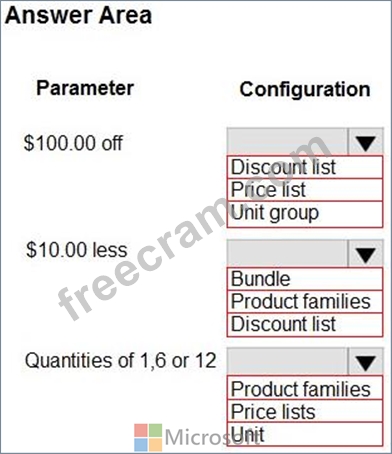
Answer:
Explanation: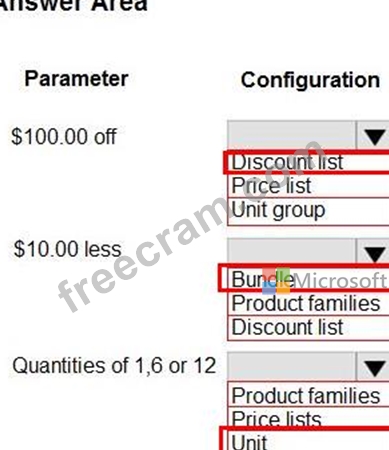
NEW QUESTION # 54
You are creating a business process flow named "Onboard new pet" to support onboarding of new clients for a pet care business.
A partially completed business process flow is shown in the following exhibit.
Use the drop-down menus to select the answer choice that completes each statement based on the information presented in the exhibit.
NOTE: Each correct selection is worth one point.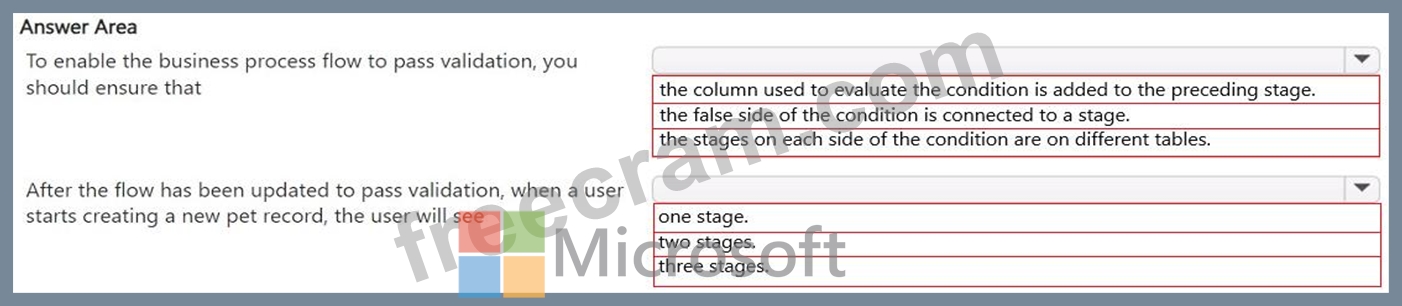
Answer:
Explanation: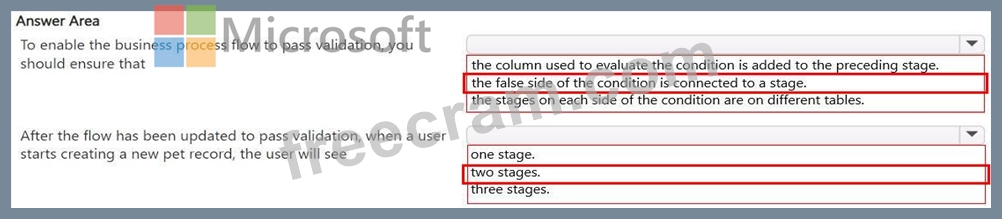
NEW QUESTION # 55
In the weeks leading up to the holiday season, the marketing department sets up a new segment-based journey.
The journey sends a marketing email to all wine enthusiasts who meet the following requirements:
1. The wine enthusiasts have a recorded wine order against their contact record.
2. The wine enthusiasts live in Europe.
You need to ensure that newly added wine enthusiasts also receive this email automatically.
How should you set up the segment?
- A. Create a segment and set the refresh rate to Static Snapshot.
- B. Create a segment using refresh rate: Automatic Refresh.
- C. Create a segment and add a group through Behavioral data.
- D. Create a segment and add contacts through an included members group.
Answer: B
NEW QUESTION # 56
You install LinkedIn Sales Navigator into Dynamics 365 Sales.
The company wants to automatically populate the LinkedIn Profile for the lead contact when following up on a lead.
You need to configure the system.
What should you do?
- A. Add a Microsoft Power BI dashboard in the Lead form.
- B. Add the LinkedIn Sales Navigator control to the contact form.
- C. Create a new column that has a URL format add the column to the Leads form, and paste the LinkedIn URL for leads.
- D. Add a control to the Last Name column on the Lead form.
Answer: D
NEW QUESTION # 57
You are a Dynamics 365 Sales administrator. You create a forecast by using the forecast category layout shown in the exhibit: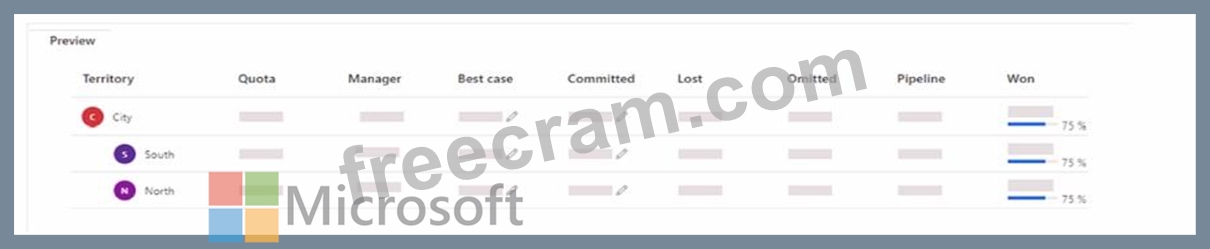
Use the drop-down menus to select the answer choice that answers each question based on the information presented in the graphic.
NOTE: Each correct selection is worth one point.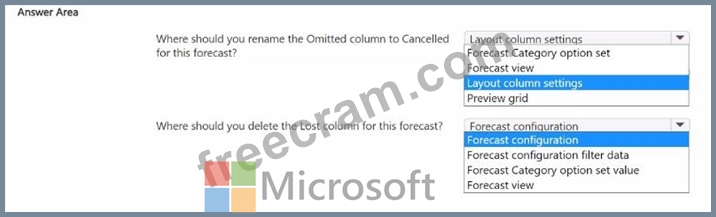
Answer:
Explanation: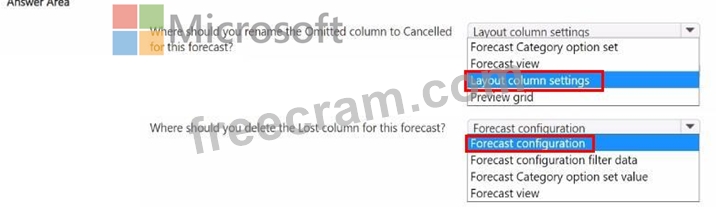
Reference:
Deleting the Lost Column from the Forecast:
To remove a column entirely, such as the Lost column, you should adjust the Forecast configuration. This configuration setting allows you to add or remove columns from the forecast grid.
Modifying Forecast configuration affects the structural aspects of the forecast, such as which columns are included, based on what is necessary for reporting and analysis.
By utilizing the Layout column settings for renaming columns and the Forecast configuration for adding or removing columns, you can tailor the forecast layout to meet specific business requirements, ensuring the forecast view is both relevant and easy for users to interpret.
NEW QUESTION # 58
You are working in Dynamics 365 Sales. You turn on the visibility of the Dynamics 365 Sales records in the channel.
A user working with leads is unable to pin the view into Microsoft Teams.
You need to identify the issue.
What should you do?
- A. Enable the Turn on Enhanced Microsoft Teams Integration option.
- B. Enable the External links within Teams option.
- C. Add users to the Teams channel.
- D. Add users to the correct security role.
- E. Disable the Turn on the linking of Dynamics 365 records to Microsoft Teams channels option.
Answer: A
Explanation:
For users to pin views of Dynamics 365 Sales records in Microsoft Teams, Enhanced Microsoft Teams Integration must be enabled. This feature allows users to seamlessly work with Dynamics 365 records within Teams and ensures proper synchronization between the two platforms.
NEW QUESTION # 59
Hotspot Question
A Company uses Exchange Online. Users require their appointments and tasks to automatically synchronize with those available in Outlook.
You need to set up the default mailbox configuration.
What should you select for each field? To answer, select the appropriate options in the answer area.
NOTE: Each correct selection is worth one point.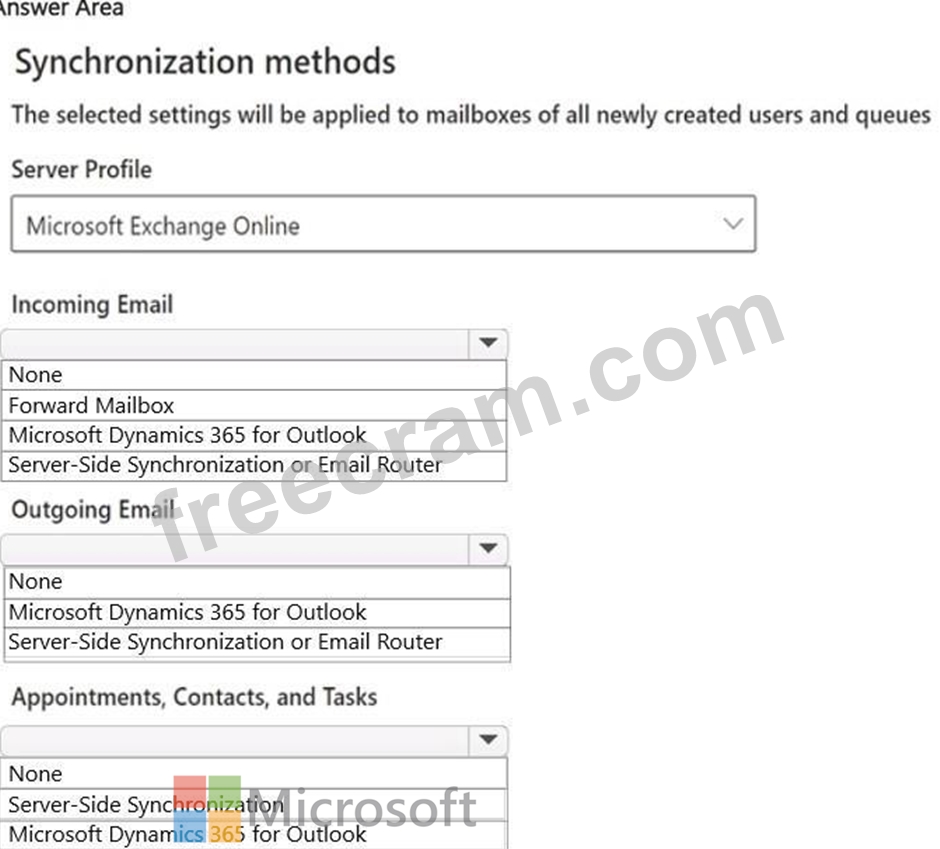
Answer:
Explanation: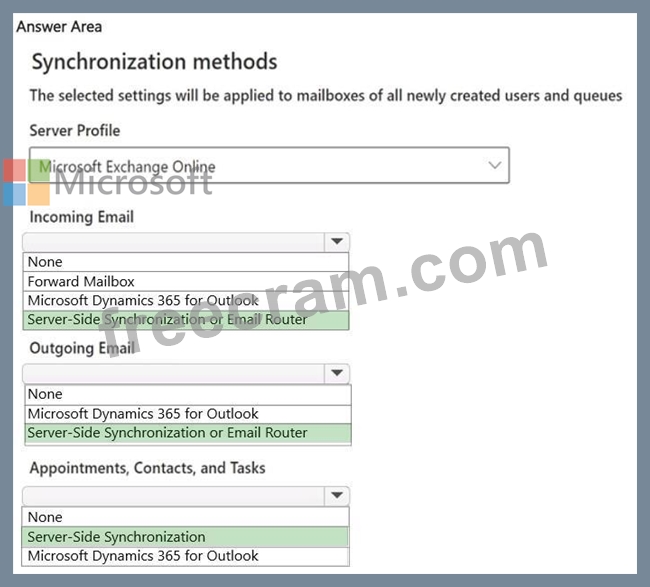
Explanation:
Incoming Email - Server-Side Synchronization or Email Router
Since the company uses Exchange Online, Server-Side Synchronization is the best choice as it allows seamless automatic email tracking and eliminates the need for manual synchronization.
Outgoing Email - Server-Side Synchronization or Email Router
To ensure emails sent from Dynamics 365 sync automatically with Outlook, Server-Side Synchronization is required.
Appointments, Contacts, and Tasks - Server-Side Synchronization
To automatically sync user appointments and tasks with Outlook, Server-Side Synchronization is required instead of using the Dynamics 365 for Outlook client.
NEW QUESTION # 60
......
Dumps of MB-280 Cover all the requirements of the Real Exam: https://www.freecram.com/Microsoft-certification/MB-280-exam-dumps.html
Correct Practice Tests of MB-280 Dumps with Practice Exam: https://drive.google.com/open?id=1qMkOj2zKNwsXHgSFzRUEpndj2YpMReB4